Showing posts with label firmware. Show all posts
Showing posts with label firmware. Show all posts
Wednesday, November 12, 2014
How To Update Samsung Galaxy S4 Value Edition I9515 Firmware Version Using Odin3
The Samsung Galaxy S4 VE I9515 has many great specs and features, And like any other Samsung Android Smartphone, The company releases many firmware updates for this model too, You can update your GS4 Value Edition to any new one via OTA or Samsung Kies software, But in some cases you may need to learn how you can update your device manually.
This easy guide will show you the right steps you should follow to manually update your GS4 VE I9515 software, You will use the Odin3 flasher to perform this update, Please read the complete guide first, Then start to apply the steps one by one to get the wanted result.
Preparation Steps:
1- Check the current firmware of your mobile, You can check it from Setting > About Phone, Or you can use this easy code *#1234#
2- It is a good idea to write down your device current firmware version, It will be useful later, In case something goes wrong.
3- Charge your mobiles battery to be at least at 90% of charging level.
4- Updating your mobiles firmware will delete everything from your device internal memory, So read this Guide to learn how you can make a backup of your important data (SMS, Contacts, Notes...etc).
5- In case you have an external memory card inserted into your mobile, Then remove it.
6- Download the Samsung USB Driver, And install it, Then restart your computer.
7- Download Odin3 program (Original Android Flasher), Extract to your computers desktop.
8- Download The Firmware package (I9515), Select the version you want to install it into your mobile.
9- Extract the firmware package to a known location on your computer.
Odin3 Settings:
1- Double click on Odin3.exe to run it.
2- These settings must be checked: Auto Reboot, F.Reset Time.
3- If you have the PIT file of your Samsung model, Then check: Re-Partition
Samsung I9515 GS4 VE Firmware Files Selection:
- Click on PIT button and select: JFVELTE_EUR_OPEN.pit
- Click on BL button and select: BL_I9515xxxxxxxx_989713_REV00_...ship_MULTI_CERT.tar.md5
- Click on AP button and select: AP_I9515xxxxxxxx_989713_REV00_..._MULTI_CERT.tar.md5
- Click on CP button and select: CP_I9515xxxxxxxx_989713_REV00_..._MULTI_CERT.tar.md5
- Click on CSC button and select: CSC_Oxx_I9515Oxxxxxxx_1165059_..._MULTI_CERT.tar.md5
Putting your mobile into Download Mode:
At this step you have to turn off your Samsung cell phone, Take out its battery and SIM card, Then read this Guide to put it into Download Mode, To be able to install the new firmware into you device you should put it into this mode.
Installing the new Firmware into your Samsung I9515 GS4 VE device:
1- After you put your mobile into Download Mode, Use the USB cable to connect it to your computer.
2- You have to wait until Windows detects the device and installs any needed drivers.
3- Look at Odin3 programs window, If the program detects your connected device correctly, You should see its COM Port number (0:[COMxx])
.4- You are ready to install the new firmware files into your Samsung mobile, Click Start button to begin.
5- After you click the Start button, Odin3 program will start to install the selected firmware files into the connected device.
6- Odin3 program will restart your Samsung mobile automatically after installing the firmware.7- Wait until your mobile is restarted.
8- Look again at Odin3 programs window, If your see PASS! word in green, Then the update was done successfully.
9- Disconnect your mobile.10- When the mobile is fully on, Check the new installed firmware version.11- Now you are ready to use the device, So reinsert the SIM can Memory cards, Restore your backup, And customize it.
Read More..
This easy guide will show you the right steps you should follow to manually update your GS4 VE I9515 software, You will use the Odin3 flasher to perform this update, Please read the complete guide first, Then start to apply the steps one by one to get the wanted result.
Preparation Steps:
1- Check the current firmware of your mobile, You can check it from Setting > About Phone, Or you can use this easy code *#1234#
2- It is a good idea to write down your device current firmware version, It will be useful later, In case something goes wrong.
3- Charge your mobiles battery to be at least at 90% of charging level.
4- Updating your mobiles firmware will delete everything from your device internal memory, So read this Guide to learn how you can make a backup of your important data (SMS, Contacts, Notes...etc).
5- In case you have an external memory card inserted into your mobile, Then remove it.
6- Download the Samsung USB Driver, And install it, Then restart your computer.
7- Download Odin3 program (Original Android Flasher), Extract to your computers desktop.
8- Download The Firmware package (I9515), Select the version you want to install it into your mobile.
9- Extract the firmware package to a known location on your computer.
Odin3 Settings:
1- Double click on Odin3.exe to run it.
2- These settings must be checked: Auto Reboot, F.Reset Time.
3- If you have the PIT file of your Samsung model, Then check: Re-Partition
Samsung I9515 GS4 VE Firmware Files Selection:
- Click on PIT button and select: JFVELTE_EUR_OPEN.pit
- Click on BL button and select: BL_I9515xxxxxxxx_989713_REV00_...ship_MULTI_CERT.tar.md5
- Click on AP button and select: AP_I9515xxxxxxxx_989713_REV00_..._MULTI_CERT.tar.md5
- Click on CP button and select: CP_I9515xxxxxxxx_989713_REV00_..._MULTI_CERT.tar.md5
- Click on CSC button and select: CSC_Oxx_I9515Oxxxxxxx_1165059_..._MULTI_CERT.tar.md5
Putting your mobile into Download Mode:
At this step you have to turn off your Samsung cell phone, Take out its battery and SIM card, Then read this Guide to put it into Download Mode, To be able to install the new firmware into you device you should put it into this mode.
Installing the new Firmware into your Samsung I9515 GS4 VE device:
1- After you put your mobile into Download Mode, Use the USB cable to connect it to your computer.
2- You have to wait until Windows detects the device and installs any needed drivers.
3- Look at Odin3 programs window, If the program detects your connected device correctly, You should see its COM Port number (0:[COMxx])
.4- You are ready to install the new firmware files into your Samsung mobile, Click Start button to begin.
5- After you click the Start button, Odin3 program will start to install the selected firmware files into the connected device.
6- Odin3 program will restart your Samsung mobile automatically after installing the firmware.7- Wait until your mobile is restarted.
8- Look again at Odin3 programs window, If your see PASS! word in green, Then the update was done successfully.
9- Disconnect your mobile.10- When the mobile is fully on, Check the new installed firmware version.11- Now you are ready to use the device, So reinsert the SIM can Memory cards, Restore your backup, And customize it.

Thursday, August 28, 2014
Lumia 920 Latest Flashing Firmware Free Download
RM-821 Update Firmware Version 3047.0000.1326.2003 Download for Nokia Lumia 920 WP8 Smartphone

Microsoft Windows Phone 8 OS Based Mobile Nokia Lumia 920 Latest Flashing Firmware Free Download
File 06 : NWP8_simlock_3gstandard_bb5_crcA59A.bin
Monday, August 25, 2014
The easiest way to put your Pipo Smart S1 tablet in firmware update mode Procedure Free Download Rom

So, this is the easiest way to put your Pipo Smart S1 tablet in firmware update mode:
1. Make sure your tablet is turned off.
2. Connect USB to tablet, but not computer yet.
3. Hold volume - button down and connect USB to the computer.
4. The Rockchip tool should now see the tablet and give you the green light.
2. Connect USB to tablet, but not computer yet.
3. Hold volume - button down and connect USB to the computer.
4. The Rockchip tool should now see the tablet and give you the green light.
Friday, August 22, 2014
Sumvision Cyclone Voyager 7 rooted Android 4 2 2 by Kasty firmware installed on Pipo S1 tablet Rom Free Download

Here is the easiest to do this firmware update:
1. Download rooted Android 4.2.2 by Kasty firmware from: link1 or link2.
2. Put your Pipo S1 in firmware update mode.
3. Run Rockchip Batch Tool v1.7, select the proper image .img file from your desktop, and after your device is found by the program, press the Restore button and wait for 2-3 minutes to finish. The first boot is very long, wait about 5-7 minutes.
1. Download rooted Android 4.2.2 by Kasty firmware from: link1 or link2.
2. Put your Pipo S1 in firmware update mode.
3. Run Rockchip Batch Tool v1.7, select the proper image .img file from your desktop, and after your device is found by the program, press the Restore button and wait for 2-3 minutes to finish. The first boot is very long, wait about 5-7 minutes.
Custom firmware features:
- root with latest SuperSU version 1.51 (free version)
- removed most Chinese and unnecessary applications
- Google Play Store fixes so more application are visible/compatible
- updated busybox v1.21.0.git (2012-11-29)
- Unix like init.d boot scripts support
- changed permissions on external sdcard to allow write access
- increased space for applications (/data partition) to 2 GB
- 11.500 points in Antutu Benchmark
- HDMI output not working.
Saturday, August 16, 2014
How to Install E270SKSUAMJ1 4 1 2 Jelly Bean Firmware for SHVE270S Galaxy Grand
For Samsung SHV-E270S Galaxy Grand (South Korea) users can update their devices to the latest Android 4.1.2 official firmware KSUAMJ1 Jelly Bean. Samsung has just launched the firmware. E270SKSUAMJ1 latest firmware build version. The Galaxy Grand is a good low-budgeted feature for Galaxy Smartphones by Samsung, released with Android 4.1.2 Jelly Bean. The device has received the Jelly Bean Android 4.1.2 official firmware updates regularly and this is the latest firmware available. If you have not yet updated the device and the latest firmware, then update your device using our simple tutorial below. You can check for the latest firmware available for your device via OTA (over the air) from Settings-About Phone-Software Update.

As Grand E270S Galaxy already running on Android 4.1.2 Jelly Bean, you can only expect a few bug fixes and performance improvements with this latest update. So, want to update to the latest E270S Galaxy Grand KSUAMJ1 Jelly Bean Android 4.1.2 firmware? To install the official way, either you can go for the OTA update as mentioned above or download the firmware via Samsung Kies utility for. However, most of us prefer the manual way to update the official firmware. So, in this article you will find step by step user guide for the Android 4.1.2 update KSUAMJ1 latest firmware on your Galaxy Grand E270S via Odin.
Important Note:
"The firmware is released only for the Samsung Galaxy Grand SHV-E270S model, so don’t try this in any other android device. Check your device model number from Settings-About Phone. Also the tutorial is based on Granddows PC. Follow all the pre-requisites, procedures and steps carefully to avoid breaking your phone".Android 4.1.2
Jelly Bean E270SKSUAMJ1 Official Firmware Download List
Points to be noted:
- South Korea: E270SKSUAMJ1_E270SSKTAMJ1_SKT.zip
Points to be noted:
- If you are using any Custom ROM such as- CyanogenMod, Paranoid Android, AOKP, SLIM ROMs etc, then it’ll replaced by this official Stock ROM
- Custom Recovery (CWM or TWRP Recovery) will be replaced by Stock Recovery
- After flashing official firmware, your device will no longer belongs to rooted device. However you can root your device any time after flashing the firmware.
How to Install Android 4.1.2 Jelly Bean Official Firmware on Galaxy Grand E270S through Odin:

- Download Android 4.1.2 KSUAMJ1 Firmware for Galaxy Grand E270S from the above list
- Download Odin 3.07
- Switch off your phone and boot Galaxy Grand E270S into Download Mode by pressing and holding the Volume Down+Home+Power buttons (long press until the boot screen appear), now press Volume Up key to proceed to Download Mode.
- Extract the downloaded Odin3.07 zip file and run the Odin3 v3.07.exe file as an administrator (Right click on the .exe file and click on Run as administrator)
- Now connect your Galaxy Grand E270S to your computer via USB cable
- In Odin3 screen, you should see a COM Port number like “0:[COM7]” at ID:COM section and “Added!” text at the message box. This means your device has been detected by Odin3.
- Make sure that, only the “Auto Reboot” and “F. Reset Time” options are checked.
- Now, extract the downloaded firmware zip file, you’ll find a firmware file with extension.tar.md5
- In Odin screen, click on PDA button and select the firmware file with .tar.md5 extension(The firmware file look something like: E270SXXDLJ5_E270SODDDLI7_INU.tar.md5)
- Now, click on the Start button to begin the installation process, wait few moments.
- Once completed, you would see “PASS!” message in ID:COM port having green background
- Your phone should automatically reboot after completion
- You can now disconnect your phone from computer
- Finish
Congrats! You have completed the tutorial for Android 4.1.2 firmware update is officially Jelly Bean on SHV-E270S Galaxy Grand. Hope you managed to do the update process. If you follow everything as mentioned in the tutorial above, then your Galaxy Grand now be running on the latest Android 4.1.2 Jelly Bean build KSUAMJ1 version. You can confirm the details of the firmware update from Settings-About Phone. If you get stuck in a spot or find a problem with the download link, then please do not hesitate to contact with us using the comment form below.
Friday, August 15, 2014
Update Motorola Defy Plus with Android 4 0 4 Custom ICS Firmware Free Download
Motorola devices are awaiting the big update of Android 4.0 Ice Cream Sandwich and Motorola seems to delay the launch of these products. Whether official updates comes or not users can update with the custom ROM and the here comes one such in the form of Android 4.0.4 on your phone to the Motorola Defy smartphone.
 Here in this article we will go through the procedure on how you can install the Android 4.0.4 on your Defy Plus smartphone. Let me mention you that this version of the firmware is not the officially released by Motorola and this is a custom developed ROM and to apply this update you need to have your devices rooted on the current firmware which you are on.
It has been continuous discussion on what works or not, let me tell you that this firmware just has the issues with the stock browser crashes while you switch between the tabs and remaining everything like camera, theme, multi boot works perfectly on your device.
Pre Upgrade Instructions
You should go through the following pre upgrade instructions –
Before we proceed with the steps to install the the custom Android ICS ROM follow the pre upgrade instructions here -
Update Motorola Defy+ with ICS 4.0.4 Firmware Procedure
Source
Here in this article we will go through the procedure on how you can install the Android 4.0.4 on your Defy Plus smartphone. Let me mention you that this version of the firmware is not the officially released by Motorola and this is a custom developed ROM and to apply this update you need to have your devices rooted on the current firmware which you are on.It has been continuous discussion on what works or not, let me tell you that this firmware just has the issues with the stock browser crashes while you switch between the tabs and remaining everything like camera, theme, multi boot works perfectly on your device.
Pre Upgrade Instructions
You should go through the following pre upgrade instructions –
Before we proceed with the steps to install the the custom Android ICS ROM follow the pre upgrade instructions here -
- Make sure that this update is only for the users who own Motorola Defy Plus smartphone but not any other version.
- Make sure that your smartphone is rooted.
- Please make sure that you have more than 70 % battery life left on your phone.
- Need to take a backup of various applications and files on your device, follow the below guide to back them individually –
SMS – Use “SMS Backup & Restore app”,
Contacts – Sync with the Gmail application,
Call Log - Call Log and Restore
Songs, Videos & Files – Copy to internal / External SD Card,
APN and MMS Settings – Note down manually via “Applications > Settings > Wireless and Network > Mobile Networks > Access Point Names”. - Make sure that you need to have USB Debugging installed on your device. Go to Settings > Applications > Development > USB debugging” and you should tick the USB debugging option.
Update Motorola Defy+ with ICS 4.0.4 Firmware Procedure
- First you need to download the latest ICS for the Motorola Defy + and also the Google Apps package separately as well and both of them are separate files.
- Once the download of the files are completed on your PC, you need to connect your phone using the USB cable to the PC and then place these two files on the root of your SD card.
- Disconnect the USB connection and power off your smartphone, so that you can boot in the recovery mode.
- One can easily enter Motorola Defy + smartphone in the recovery mode by using the various keys combination of Volume down, power button together at once. Release button when you see the recovery menu.
- Up next you need to select “install zip from sd card” > “choose zip from sd card” and browse for the firmware package you have downloaded earlier. Here in the recovery mode you can make use of the volume up and down keys to navigate between the options and to select an highlighted option you need to press the power button.
- Once that is applied you would be taken back to the recovery mode screen.
- Now repeat the procedure of “install zip from sd card” > “choose zip from sd card” for the Google Apps package.
- Now return back to the recovery menu screen and select “reboot system now” to reboot your device and see the phone with the firmware.
Source
What others Searched for:samsung defy,MOTOROLA DEFY,moto defy,motorola defy android,motorola defy plus,Motorola moto defy,motorola ace,motorola,motorolla defy.
Wednesday, August 13, 2014
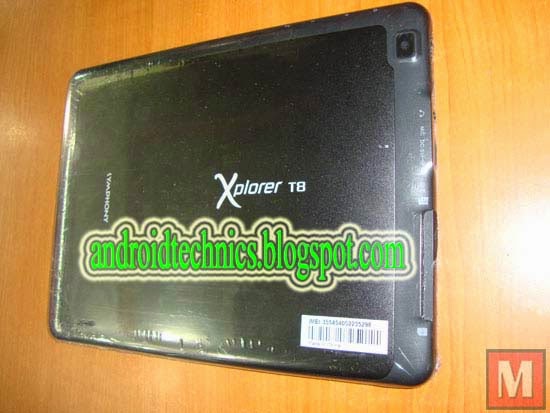
Symphony T8 Android Version 4 2 2 OFFicial Firmware Flash File Free Download
Symphony T8 Android OFFicial Firmware Flash File Free Download,Symphony T8 Custom Firmware Flash File Free Download,Symphony T8 Stock Fimrware Free Download,Symphony T8 Flash File Download Without Password
Subscribe to:
Posts (Atom)

